

List of Top 10 Basic Excel Formulas & Functions
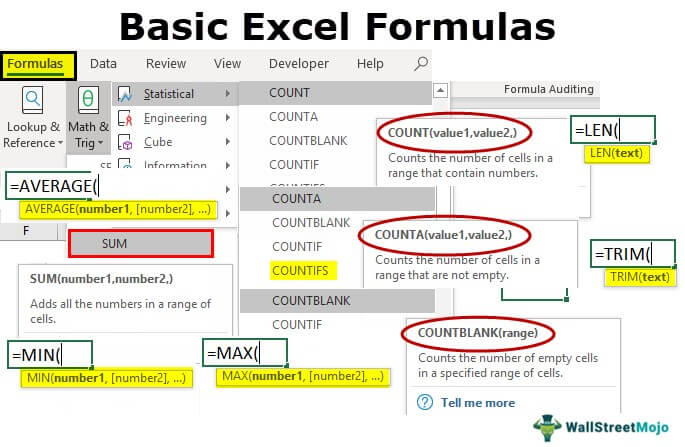
Here is the list of the top 10 basic formulas and functions in Excel.
- SUM
- COUNT
- COUNTA
- COUNTBLANK
- AVERAGE
- MIN Excel
- MAX Excel
- LEN Excel
- TRIM Excel
- IF Excel
Now, let us discuss each of them in detail –
#1 SUM in Excel
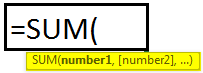
This basic Excel formula is used to get the sum of the value in one or more cells or ranges.
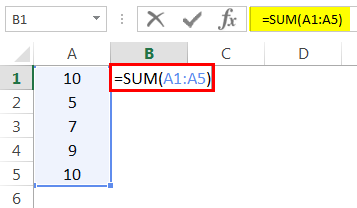
Example
=SUM(A1:A5)
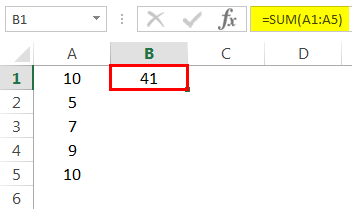
Result = 41 (See Image below)
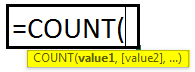
#2 COUNT Excel Function
This basic Excel function counts the numeric value in one or more cells or ranges.
Example
=COUNT(A1:A5)
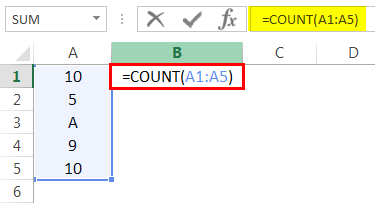
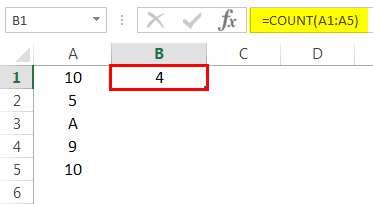
Result = 4 (This will exclude cell A3 since this formula calculates the only numeric value. Please see the image below).
#3 COUNTA in Excel
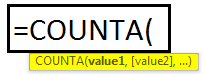
This formula counts the value in one or more cells (This will measure the cells irrespective of the number or text value).
Example
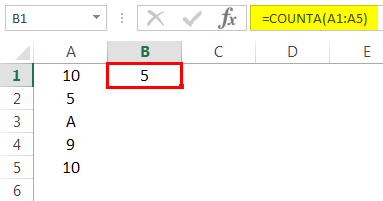
=COUNTA(A1:A5)
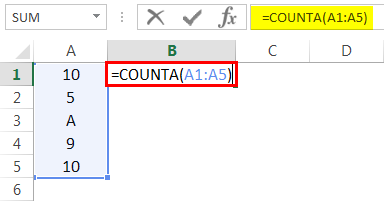
Result = 5 (This will Include Cell A3 since this formula calculates both text and numeric value. See Image below).
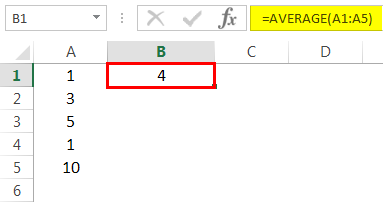
#5 AVERAGE in Excel
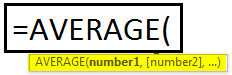
This basic formula in Excel is used to get the value average in one or more cells or ranges.
Example
=AVERAGE(A1:A5)
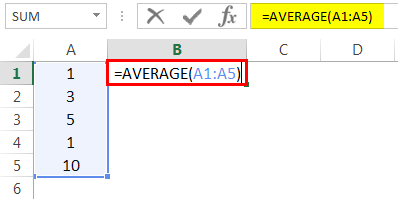
Result = 4 (See image below)
#4 COUNTBLANK in Excel
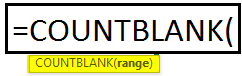
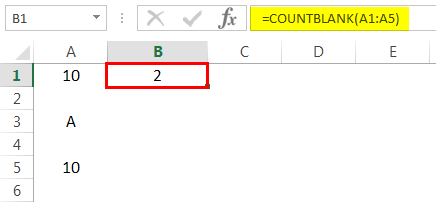
This Excel basic function counts the blank value in the range. (Note: We will not consider only space in a cell a blank cell).
Example
=COUNTBLANK(A1:A5)
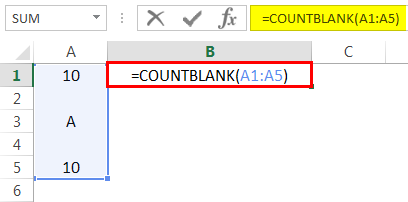
Result = 2 (This will calculate the number of blank cells in the range. See image below).
Basic Excel Formulas – Explained in Video
#6 MIN Formula in Excel
This Excel basic function is used to get the minimum value in cells or ranges.
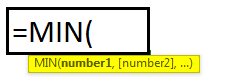
Example
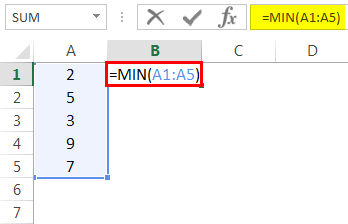
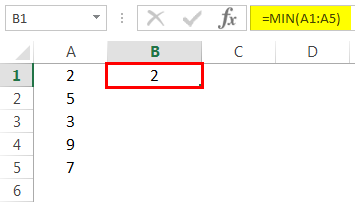
=MIN(A1:A5). Result = 2 (See Image below)
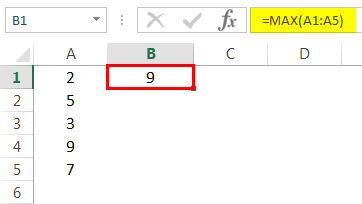
#7 MAX Formula in Excel
This basic Excel function gets the maximum value in cells or ranges.
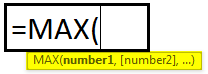
Example
=MAX(A1:A5)
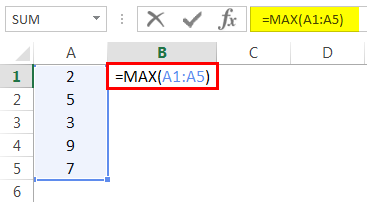
Result = 9 (See Image below)
#8 LEN in Excel
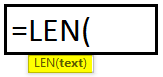
This basic function of Excel calculates the number of characters in a cell or text.
Example
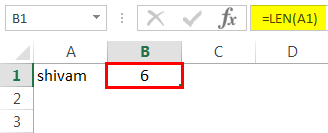
=LEN(A1)
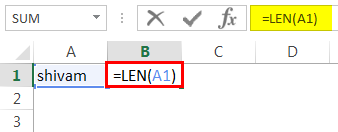
Cell A1 value is Shivam, which has a 6-character length. So, the result would be 6 (See image below).
#9 TRIM in Excel
This basic Excel function removes unnecessary space in a cell or text.
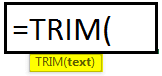
SYNTAX: TRIM(TEXT)
Example
=TRIM(A1)
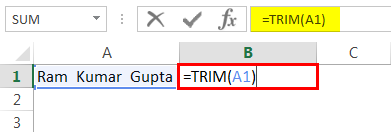
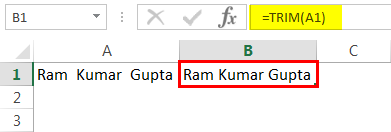
Cell A1 has two spaces between the first, middle, and last names. This function will remove extra space to give the result. (See image below).
#10 IF in Excel
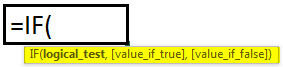
IF function can perform a logical test in Excel.
Example
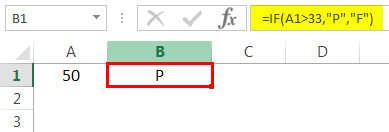
=IF(A1>33,”P”,”F”). A value in cell A1 is 50, and a logical test is if the value is greater than 33. Then the result would be P. Else, the result would be F.
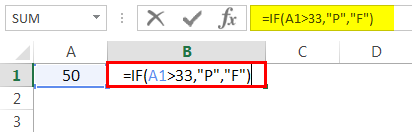
Since the value 50 is greater than 33, the result would be P. (See image below).
Things to Remember
- A formula should always start with an equal sign. Else, it will show an error.
- If we enter any text value instead of giving a cell address, we should provide the text value within an inverted comma (“”).
- Before entering the function in a cell, ensure that the cell format is general. If a text format is selected, then the formula will not work.
- Space (_) is always counted as a single character. So, if you are working with blank cells, remember that if a cell has only space, it will not be counted as a blank cell.
Recommended Articles
This article is a guide to Basic Formulas in Excel. We discuss a list of the top 10 basic Excel formulas and functions with examples with a downloadable Excel template. You may learn more about excel from the following articles –